When the drug inspector visits, you are asked for your registers: who you bought each medicine from and under which licence, what you sold on prescription, how much of every controlled medicine came in and went out, and what has expired. MediPOS keeps all of this as you bill and buy. This guide shows how to print the controlled drugs register, the prescription register, the purchase register and the expiry register straight from MediPOS, one by one or together as an inspection pack, and what to set up so nothing shows as missing. It is written for owners and pharmacists.
The registers are in Reports, under Drug inspector. Anyone who can see reports can print them. The cost value columns show only to those allowed to see purchase cost.
What to set up first
The registers are only as complete as what is recorded. Check these once:
- Your drug sale licence no. Under Settings, fill in Drug sale licence no. It prints on the cover of the pack and on your receipts. With more than one branch, each branch can have its own under Branches.
- Each medicine's drug class. On the product, Drug class is OTC, Prescription (Rx), Controlled, Narcotic or Psychotropic. Medicines from the medicine database come with it, but check your controlled ones (for example alprazolam, bromazepam, tramadol, codeine syrups). The controlled drugs register lists Controlled, Narcotic and Psychotropic medicines. The prescription register lists those and Prescription (Rx).
- Each distributor's licence. Open Suppliers, edit the distributor, and fill in Drug sale licence no. from its bill, and Licence valid till if you know it. The purchase register prints it next to every bill from that distributor.
- The prescription at the counter. When a bill has an Rx or controlled medicine, the POS shows a strip with Patient, Prescription ref and Doctor. Type the patient's name (for a customer chosen on the bill, their name is used), the prescription's number or date (or the reference you write on the slip) and the doctor's name. For controlled medicines, fill in all three.
The registers
| Register | What it shows | Period |
|---|---|---|
| Controlled drugs register | Every controlled, narcotic and psychotropic medicine in and out: the date, batch, entry (purchase, sale, return, adjustment), the document, who it came from (distributor and licence) or went to (patient), the prescription and doctor, the quantity received or issued, and the balance after each entry | The dates you choose |
| Prescription register | Every sale of an Rx or controlled medicine: date, invoice, patient, medicine, batch, quantity, prescription ref., doctor and who sold it | The dates you choose |
| Purchase register | Every purchase bill: date, purchase no., distributor, its drug licence no., licence valid till, the distributor's bill no., items and amount | The dates you choose |
| Expiry register | Batches in stock that have expired or expire soon: medicine, batch, expiry, days left, where it is kept and who supplied it | As on today, expiring within 30 days to a year |
| Stock by batch | Everything in stock now, medicine by medicine and batch by batch, with expiry, place and price | As on today |
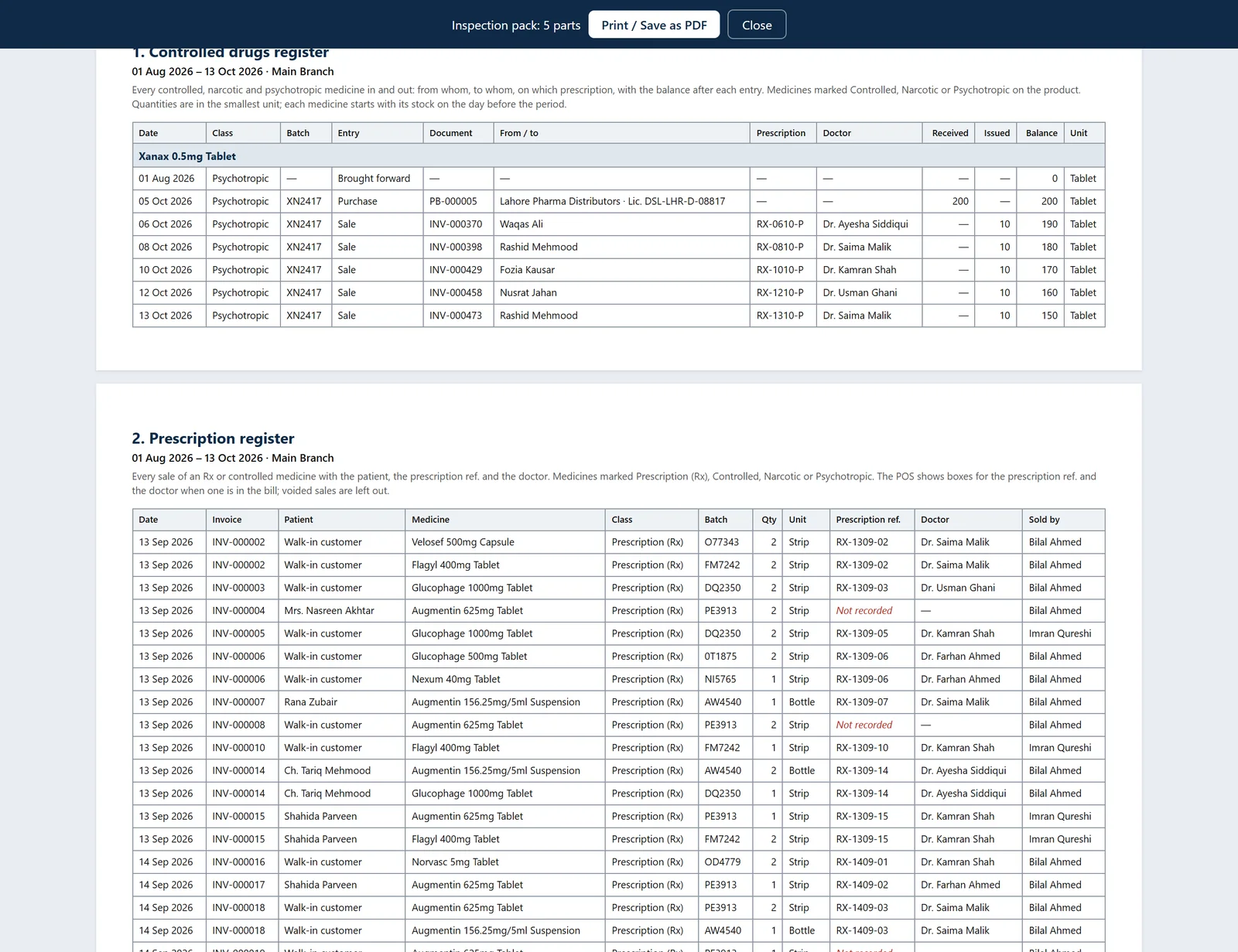
The controlled drugs register starts each medicine with Brought forward: its stock on the day before the period. Every entry after that shows the new balance, so the last line of each medicine is what should be on the shelf. Count it against the shelf before the inspector does. Quantities are in the smallest unit (tablets, ml).
A sale voided by mistake shows twice, as the sale and as Sale voided, the way a written register would show a correction. Nothing is erased.
Not recorded in red means something is missing: a prescription ref. on a sale, or a distributor's licence. (expired) after a licence means it had run out on the bill's date.
Print the inspection pack
The inspection pack puts every register in one printout, with a cover page.
Swipe to see the whole screen · tap to close
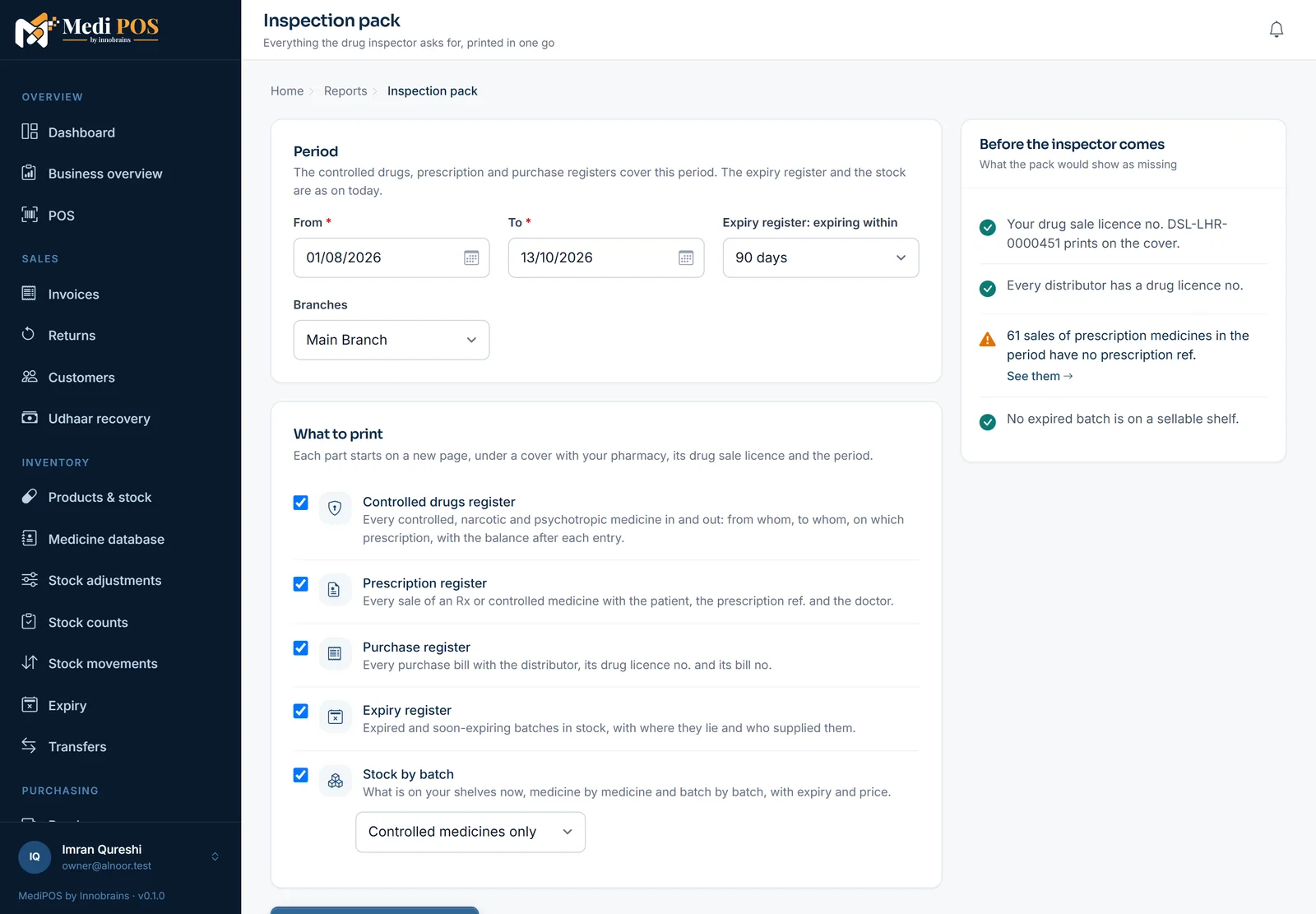
- Open Reports and click Inspection pack at the top of the Drug inspector group.
- Set From and To for the registers. It starts with this month and the two before it. One pack can cover up to a year.
- Choose Expiring within for the expiry register (90 days unless you change it).
- Tick the parts to print. For Stock by batch, choose Controlled medicines only (the usual) or Every medicine in stock.
- Click Open the pack to print. It opens in a new tab. Click Print / Save as PDF, and choose your printer, or Save as PDF to keep a copy or send it.
The pack prints on A4 across the page. The cover has your pharmacy's name, drug sale licence no., address, branch, the period, who printed it and when, and a list of the parts with how many entries each has. At the bottom are two lines to sign: one for the proprietor or qualified person, one for the drug inspector's remarks and stamp. Each part starts on a new page, the column heads repeat on every page, and each page is numbered.
Swipe to see the whole screen · tap to close
A part with more than 5,000 entries prints the first 5,000 and says so. Choose a shorter period, or download that register in Excel from its report.
Before the inspector comes
Next to the choices, Before the inspector comes lists what the pack would show as missing, with a link to put it right:
- your drug sale licence no. is not saved;
- distributors without a licence no., or with one that has run out;
- sales of prescription medicines with no prescription ref. in the period (click See them to open the prescription register);
- expired batches still on a sellable shelf: move them to the expiry store from Expiry.
A green tick means that item is in order.
In the Windows app
The same pack is in the MediPOS Windows app: Reports → Inspection pack. Set the period and the parts, then click Show the pack to see the pages as they will print. Print / PDF prints every page on A4 across. To keep a PDF, choose Microsoft Print to PDF as the printer. The pack works on the shop PC without internet on the Offline edition.
Each register on its own
Every register is also an ordinary report. Open it from Reports → Drug inspector to filter it (period, a medicine's name), see it on screen, print it, or download it in Excel or CSV. A row links to its invoice, purchase bill, medicine or supplier.
Common questions
A controlled medicine is missing from the controlled drugs register. Its drug class is not Controlled, Narcotic or Psychotropic. Open the product, set Drug class, and print again: the register reads the stock ledger, so all its past entries appear at once.
The balance in the register does not match my shelf. Count the medicine and post a stock count with the reason. The difference shows in the register as Count gain or Count loss with the date, which is what an inspector expects to see instead of a quiet correction.
Can I add a prescription ref. to an old sale? No. A completed sale cannot be changed. The register shows it as Not recorded. Record the prescription at the counter from now on: the POS shows the boxes for every Rx and controlled medicine.
Does the pack include other branches? It covers the branch you are in. With All-branch reports, choose All branches under Branches.
Last updated 13 October 2026. Still stuck? Contact us.